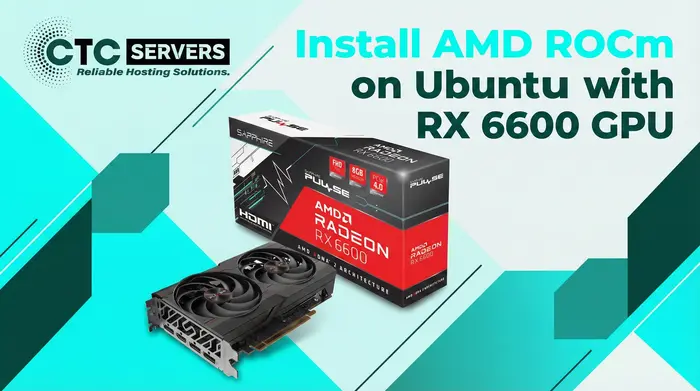
AMD ROCm on Ubuntu
Setup Guide for RX 6600 / 6600 XT
What is AMD ROCm and Why It Matters for Machine Learning
AMD ROCm (Radeon Open Compute) is AMD’s open-source platform for GPU computing, designed to bring high-performance compute capabilities to Linux systems. Unlike traditional graphics drivers, ROCm provides a complete ecosystem for running compute-heavy workloads such as machine learning, data science, and scientific simulations directly on AMD GPUs. With ROCm, developers can leverage GPU acceleration for popular frameworks like TensorFlow, PyTorch, and HIP, enabling faster model training and inference without relying on cloud resources. This makes ROCm particularly valuable for users with AMD consumer GPUs, like the RX 6600 series, allowing them to run modern AI workloads locally with efficiency and control. By combining ROCm with Ubuntu and tools like Ollama, you can deploy large language models, experiment with AI, and harness the full potential of AMD hardware in a cost-effective and flexible way.
Running modern machine learning workloads on AMD consumer GPUs is no longer a fringe experiment. With AMD ROCm, Ubuntu, and tools like Ollama, you can run large language models such as Llama 3.1 locally on your own hardware — ideal for AI development, inference workloads, and GPU-heavy tasks without cloud costs.
This tutorial is written for users who want a clear, practical, and copy‑paste‑ready guide to set up ROCm on an AMD RX 6600 / 6600 XT GPU using Ubuntu 22.04 LTS, then install Ollama and run a real LLM.
System Information (Reference Setup)
Below is the system configuration used for this setup. Your hardware can vary, but results are best if you stay close to this environment.
- username@hostname
- OS: Ubuntu 22.04.4 LTS x86_64
- Host: redacted
- Kernel: 6.5.0-45-generic
- Uptime: 2 hours, 40 mins
- Packages: 1820 (dpkg), 11 (snap)
- Shell: bash 5.1.16
- Resolution: 2560×1440
- DE: GNOME 42.9
- WM: Mutter
- WM Theme: Adwaita
- Theme: Yaru-blue-dark [GTK2/3]
- Icons: Yaru-blue [GTK2/3]
- Terminal: gnome-terminal
- CPU: AMD Ryzen 9 6900HX with Radeon
- GPU: AMD ATI Radeon RX 6600/6600 XT/
- GPU: AMD ATI e8:00.0 Rembrandt
- Memory: 4023MiB / 31356MiB
----------------------------
System Update & Headers
sudo apt update && sudo apt upgrade -y
sudo apt install linux-headers-$(uname -r) linux-modules-extra-$(uname -r) wget curl nano -y
Set Permissions
sudo usermod -aG render,video $LOGNAME
sudo reboot
Install AMDGPU & ROCm
# Example of a valid recent path (Check repo.radeon.com for exact current version)
wget https://repo.radeon.com/amdgpu-install/6.1.3/ubuntu/jammy/amdgpu-install_6.1.60103-1_all.deb
- Note: We attempt to use the DKMS (kernel driver) first. If this step fails with "building module errors," you can try running it again with --no-dkms added.
sudo amdgpu-install --usecase=rocm
sudo tee /etc/ld.so.conf.d/rocm.conf <<EOF
/opt/rocm/lib
/opt/rocm/lib64
EOF
sudo ldconfig
Verify Installation & Identify GPU ID
sudo rocminfo
- Look for the Agent that says "gfx1032" (This is the RX 6600).
- Note if it is the first GPU listed or the second.
- Usually:
- Device 0 = Integrated Graphics (Rembrandt)
- Device 1 = RX 6600
Install Ollama
curl -fsSL https://ollama.com/install.sh | sh
Configure Ollama Service (The "Override")
sudo systemctl edit ollama.service
[Service]
Environment="HSA_OVERRIDE_GFX_VERSION=10.3.0"
Environment="ROCR_VISIBLE_DEVICES=1"
- HSA_OVERRIDE...: Tells ROCm to treat the RX 6600 (gfx1032) like the supported RX 6800/6900 (gfx1030).
- ROCR_VISIBLE_DEVICES=1: Tells Ollama to ignore the iGPU (0) and use the RX 6600 (1). If you only have one GPU, change this to 0.
sudo systemctl daemon-reload
sudo systemctl restart ollama
Final Test
ollama run llama3.1
watch -n 1 rocm-smi
- You should see the Power usage go up (e.g., 100W) and SCLK (clock speed) increase on the RX 6600.
- If the "VRAM%" stays at 0 and only your CPU spikes to 100%, the configuration in Step 6 is incorrect.
CTCservers Recommended Tutorials
Web, Network
Step-by-Step Guide: Install AMD ROCm on Ubuntu with RX 6600 GPU
Learn how to quickly and easily set up AMD ROCm on Ubuntu for your RX 6600 GPU, enabling powerful machine learning, AI workloads, and GPU-accelerated computing right on your system.

Web, Network, Linux, Mysql, Ubuntu
LAMP Setup Guide 2026: Ubuntu & Debian | CTCservers
Install a secure LAMP stack on Debian or Ubuntu. Follow our step-by-step guide to configure Linux, Apache, MySQL, and PHP for your web server.
Web, Network, Ubuntu
Deploy Phi-3 with Ollama on Ubuntu GPU | CTCservers
Learn how to easily deploy the Phi-3 LLM on an Ubuntu 24.04 GPU server using Ollama and WebUI. Follow our step-by-step tutorial for seamless AI hosting.
Discover CTCservers Dedicated Server Locations
CTCservers servers are available around the world, providing diverse options for hosting websites. Each region offers unique advantages, making it easier to choose a location that best suits your specific hosting needs.